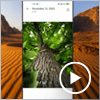
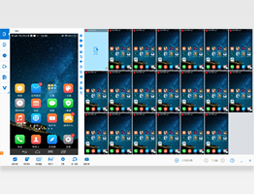
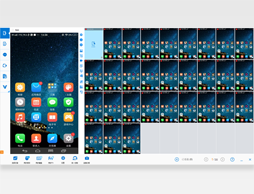
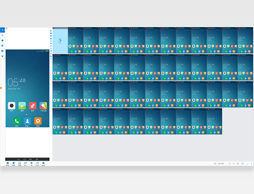
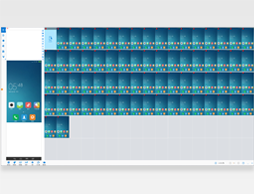
Control One = Control All
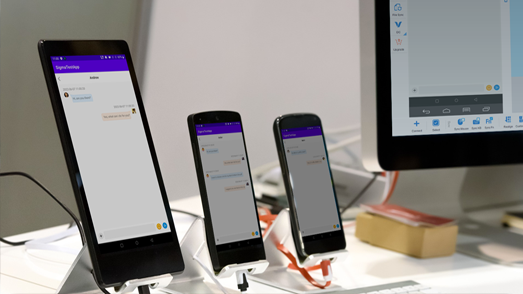
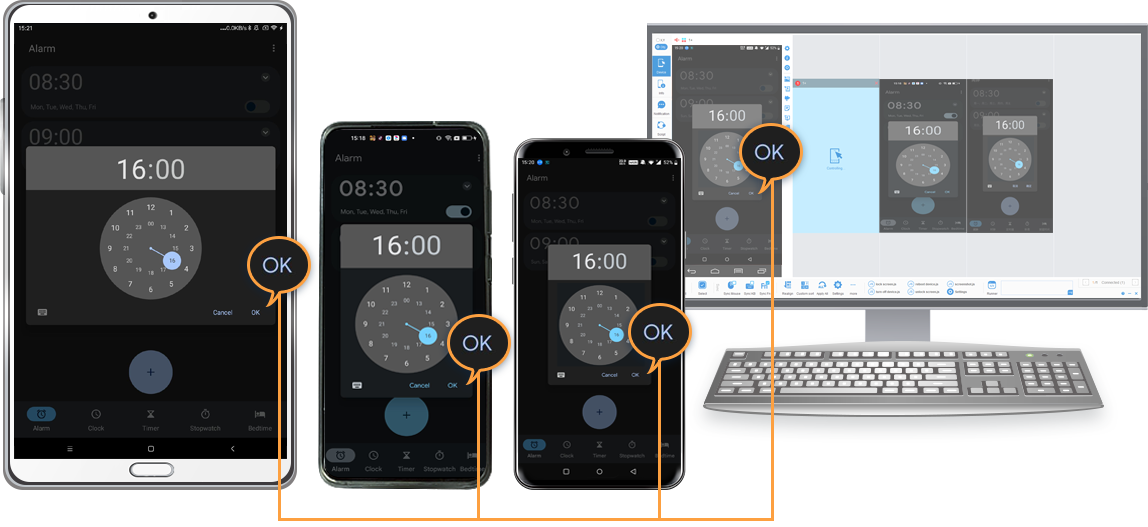
Object mode in one-to-many synchronization, send query of the node (or UI object) to all devices instead of coordination, click "OK" can run on all devices with different resolutions than click(100,100).
AAI Script (AAIS) is very small script built on top of AAI's FindNode, it has a very simple syntax and with a dozen of commands, it is useful to write simple tests or throw away scripts.
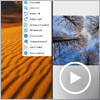
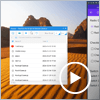
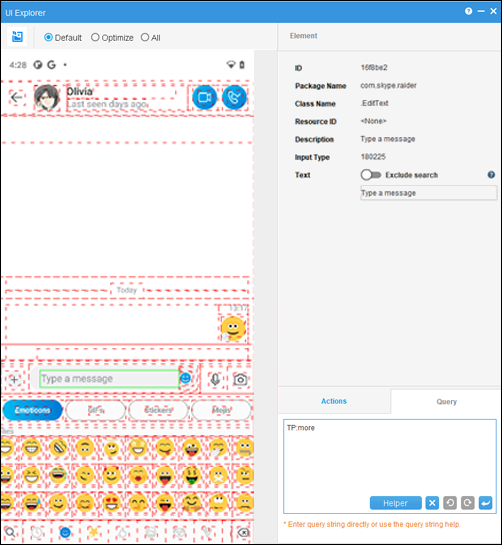
UI Explorer to obtain node information and helper program to construct query, great to learn query language learning.
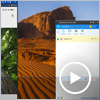
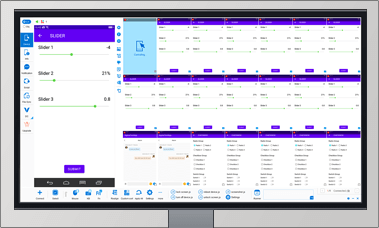
Select Obj mode to easily sync Android devices with dfferent screen resolutions and brands (resolution independent).
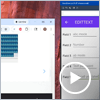
Example: Sync buttons in different locations.
Support FindNode, REST API & JavaScript API
Integrate object-based action to existing API & seamless integration with FindNode.
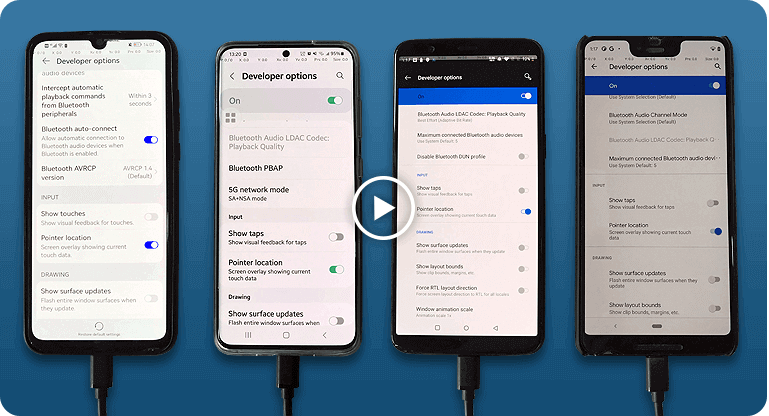

device.sendAai({query:"T:Android version&&OY:1", action: "getText"})devices.sendAai({ actions:["scrollIntoView('T:Pointer location||OX:1','down')","click"]})http://localhost:8090/TotalControl/v2/devices/ids/aai/sendaai?
{
"token": "270eq7lXQK8bXYsJ",
"state": "active",
"ids": ["device@795844152","device@795812215"],
"query":"T:Pointer location||OX:1",
"postAction":"click",
"preAction":"scrollToView"
}Total Control allows users to control Android devices from a PC with low latency and high stability. It supports controlling multiple Android devices simultaneously, making it ideal for Android testing, automation, demonstrations, and device farm environments.
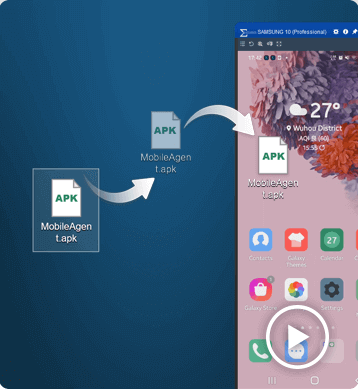
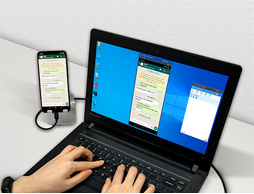
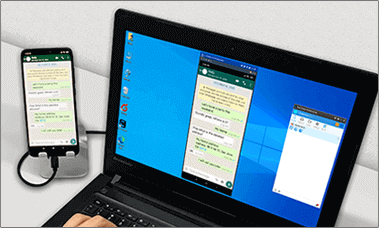
Controlling Android devices from a PC is essential for developers, testers, and businesses that need to operate multiple devices efficiently. With Total Control, users can mirror and control Android devices directly from a Windows computer using a keyboard and mouse.
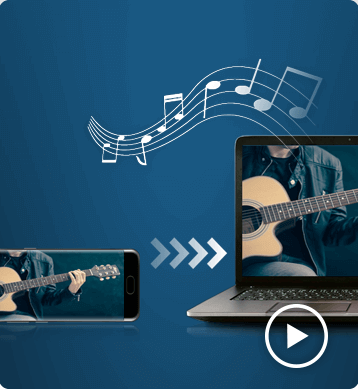
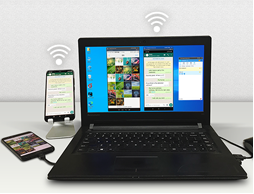
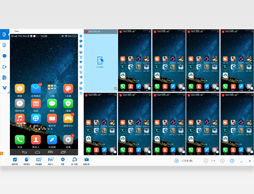
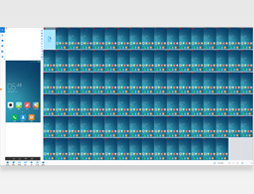
The software supports multi-device synchronization, allowing users to control multiple Android devices simultaneously from a single PC. This makes it ideal for Android automation, device testing, demonstrations, and large-scale device environments such as Android device farms.
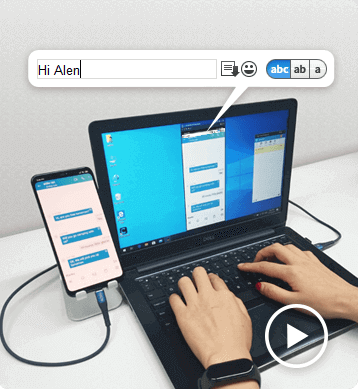
Compared with traditional screen mirroring tools, Total Control focuses on low latency, stability, and large-scale device control. Users can easily deploy dozens of devices, synchronize actions, and automate repetitive operations using scripts and APIs.
Controlling Android from a PC is simple with Total Control.
After installing the software on your computer, connect your Android device via USB and enable USB debugging.
Once connected, you can view and control your Android screen directly from your PC using a keyboard and mouse.
The Lite version supports 1–2 devices and is free for non-commercial use.
To control multiple Android devices simultaneously, upgrade to the Professional version for advanced features and large-scale device management.
Total Control supports Windows 7 to Windows 11 (32-bit and 64-bit).
It is compatible with Android 6.x to Android 16 devices from all major brands and manufacturers.
Yes. Total Control allows you to control Android devices from a PC without rooting the device. Simply enable USB debugging and connect via USB to start controlling the device securely.
Yes. The Professional version supports controlling multiple Android devices simultaneously, making it ideal for developers, testers, and enterprise device management.
The best way is to use a professional Android control tool that provides low latency, stable connections, and full keyboard and mouse support. Total Control is designed for commercial and multi-device environments.
Yes. When using a secure local USB connection, data transmission remains stable and protected. Total Control is built for enterprise-level reliability and security.